UPDATED! Modern organizations rely heavily on automation. Systems like n8n quietly power workflows, notifications, data transfers, and internal processes behind the scenes. When something fails, the impact can be immediate and painful. That is why a reliable backup approach matters.
Recently, I needed to pull complete workflow and credential backups from an n8n instance running in a Docker container on Windows 11. This post outlines the method I used. It is simple, repeatable, and works even if the n8n GUI is unreachable.
This guide is ideal for anyone running n8n in Docker Desktop and wants a clean, version-controlled backup process. While simple, this process assumes you are familiar with Docker containers and how to use system prompts/Powershell commands.
Step 1: Start with the Shell
Start an Interactive Shell Inside the n8n Container
The first step is to get a shell inside the running n8n docker container. This lets you execute commands inside the n8n’s operating system and to run n8n’s built-in backup commands:
username@WIN11PC C:\Users\username> docker exec -u node -it <containerName> shReplace <containerName> with the assigned container name of your n8n container. You will drop into the lightweight command shell of the n8n container.
Step 2: Export Your n8n Workflows
n8n provides native command-line-interface (CLI) commands for exporting workflows. For this example I am leaving you two options to choose from: a single consolidated file or a directory of individual JSON files. (see the n8n documentation for others)
A. Export workflows into a single file
~$ n8n export:workflow --all --output=backups/latest/wrkflwfile.jsonThis creates one master file containing all workflows. It is ideal for archiving, moving between systems, or snapshot-style backups.
B. Export workflows into separate files
~$ n8n export:workflow --backup --output=backups/latest/With this command each workflow becomes its own JSON file. Perfect for Git-based version control and change tracking.
Step 3: Export Your n8n Credentials
Credentials are critical for your n8n workflows to operate. Without them, your restored workflows may not run without setting up new creditionals. Export them securely using one of the two supported formats.
A. Single file export
~$ n8n export:credentials --all --output=backups/latest/credsfile.jsonSimple, portable, and easy to store securely.
B. Separate files export
~$ n8n export:credentials --backup --output=backups/latest/Ideal if you want to track credential changes individually.
Important: Credential backups are encrypted using n8n’s encryption key. Make sure you also back up your environment configuration or .env file.
Step 4: Copy the Backup Files From the Container to the Host Machine
You have successfully extracted your workflows and credentials to a transportable format but they are still locked up inside your Docker container and inaccessible! New, we must copy these from inside the container to your Windows host.
Exit the n8n shell:
~ $ exitDocker has a built in command to copy files from the container… docker cp:
username@WIN11PC C:\Users\username> docker cp <containerName>:/home/node/.n8n/backups/latest/ C:\path\on\hostReplace <containerName> with the Docker container name and C:\path\on\host where you would like the file to be copied to. For example, if your backups were created inside:
/home/node/.n8n/backups/latest/ and to store them in n8n-backups, hen you would run:
username@WIN11PC C:\Users\username> docker cp n8n:/home/node/.n8n/backups/latest C:\n8n-backupsYour backups are copied out of the Docker environment and are safely stored on your host filesystem. From there, you can archive them, sync them to cloud storage, add them to Git, our use them to restore a your workloads on another server. Reverse this sequence and refer to the n8n documentation for the Docker and n8n shell commands to use to this.
Why This Matters
Automation platforms are often the backbone of modern small businesses. Workflows coordinate operations, security events, notification pipelines, data enrichment, and more. Yet most people never back them up until something breaks.
This approach gives you:
- Clean workflow exports
- Encrypted credential backups
- A host-level copy you control
- A repeatable process that fits into any CI/CD or IT operations cycle
Most importantly, it ensures that your automation stack remains resilient and recoverable.
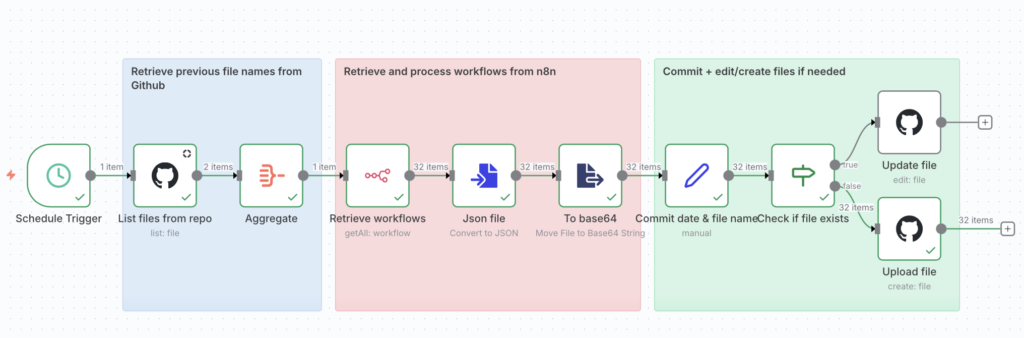
UPDATE! Use n8n and GITHUB to automate backups
Always learning. To keep yourself solid, use n8n and GitHub to create daily, automated backups of your n8n server!
I found this workflow on the n8n community by Hugo that is fairly straightforward and does exactly what is intended….
Closing Thoughts
Backing up n8n inside Docker is straightforward once you know the steps. Whether you are running a single automation server or supporting a larger production environment, this process ensures that your workflows and credentials are never a single point of failure.
If you want help creating a full backup automation using PowerShell, n8n itself, or an n8n-to-Git pipeline, reach out. I build these for teams that need to modernize their operations without adding complexity.
all n8n shell CLI commands: https://docs.n8n.io/hosting/cli-commands/
Leave a Reply